The moment someone lands on a website, decisions are being made, often subconsciously. Stay or leave? Trust or doubt? Those choices rarely depend on colour palettes or logo design. More often than not, they depend on navigation. If the menu is easy to understand, intuitive to use, and consistent across the site, the path forward is clear. If it’s messy or confusing, the journey ends before it even begins.
Navigation doesn’t just guide; it signals credibility. A well-structured menu doesn’t call attention to itself. It quietly supports every interaction, making it easier for visitors to find information, explore more content, and take meaningful action.
UX and SEO Live in the Menu
Search engines and users both rely on links to make sense of a website. If those links are thoughtfully organized and clearly labelled, everyone wins.
When a visitor quickly finds what they’re looking for, bounce rates drop. They stick around longer. That dwell time signals quality to search engines, which in turn helps boost rankings. Internal linking through navigation also distributes page authority more evenly across a site, helping subpages rank better.
But poor navigation has the opposite effect. Confusing labels, buried pages, or broken menu structures frustrate users and search bots. The result? Lost traffic, reduced conversions, and missed opportunities. It’s no coincidence that some of the top-performing websites in the world treat their navigation like a cornerstone, not an afterthought.
How WordPress Makes Navigation Flexible
One of the reasons WordPress powers more than 40% of the web is its ease of use, and nowhere is that more evident than in its navigation tools.
In the WordPress dashboard, creating and managing menus is drag-and-drop simple. Admins can build as many custom menus as needed, assign them to different locations, and rearrange or rename links without touching a single line of code. Need a footer-specific menu? A mobile-only navigation toggle? A conditional menu that changes based on who’s logged in? All possible within the WordPress framework.
Beyond the basics, themes often support advanced layouts, and plugins expand functionality even further. Whether it’s building mega menus with icons and thumbnails or hiding items based on device type, WordPress is flexible enough to support nearly any navigation approach.
The Core Principles of Great Website Navigation
Keep It Logical
Good navigation isn’t about showing everything. It’s about showing the right things in the right order.
The sweet spot for main menu items tends to be five to seven. Fewer than that might feel sparse. More than that becomes overwhelming. Each top-level link should represent a key part of the site. Under those, dropdowns or mega menus can handle subcategories, but the goal is clarity: every link should earn its place.
Groupings should reflect how users think, not how the team internally categorizes things. A visitor doesn’t want to parse internal jargon. They want language that reflects their intent.
Keep It Predictable
Web users lean on conventions. They expect the main menu at the top. They expect a hamburger icon to open a menu on mobile. They expect “Contact” to mean a page with contact details, not a company vision statement. The more a site follows these unspoken rules, the more comfortable it feels.
That doesn’t mean creativity is off-limits. But any deviation from norms has to be intentional and tested. Predictability lowers cognitive load. It helps visitors feel like they’re in control.
Keep It Inclusive
A navigation system that only works for some users isn’t working at all. That’s where accessibility comes in.
Menus should be navigable by keyboard. They should use semantic HTML so screen readers can interpret them correctly. Focus states should be visible. Contrast should meet WCAG standards. Every menu icon should include alt text or ARIA labels.
These adjustments don’t just support people with disabilities. They improve the experience for everyone, especially users on slow connections, smaller screens, or unfamiliar devices.
Keep It Consistent
Consistency builds trust. If a menu jumps around between pages, or if certain links disappear when scrolling, it creates friction.
Site-wide, navigation should look and function the same. That means the same structure, placement, styling, and behaviour. A visitor who learns how to use the menu on one page should feel confident using it on any other.
That consistency reinforces the site’s design language. It makes content feel cohesive. And it ensures that returning visitors don’t have to re-learn anything.
Different Types of Navigation and When to Use Them
Primary (Header) Navigation
This is the starting point for most users. Placed at the top of the page, the header menu sets the tone. It should include the most important sections of the site and be easy to scan at a glance.
For many, the primary menu includes Home, About, Services, Blog, and Contact. Others might lead with Products, Solutions, or Get Started. Whatever the labels, the goal is to make orientation effortless.
Dropdowns and Mega Menus
When a site has depth, like dozens of product categories or blog topics, simple menus aren’t enough. That’s where dropdowns or mega menus come in.
Dropdowns are best for a small number of subpages. Mega menus are better when there are many options that need to be grouped or visualized. But both should be designed carefully. Too many nested layers can frustrate users, especially on mobile.
Well-built mega menus offer structure and hierarchy, not clutter.
Footer Menus
The bottom of the page might seem like an afterthought, but it’s prime real estate. Many visitors scroll there looking for policies, support, careers, or contact details.
Footer menus are a chance to reinforce site architecture. They provide a safety net for navigation. They’re also ideal for linking to less-trafficked but still important pages, like Terms of Use or Accessibility Policies.
Breadcrumbs
Breadcrumbs show users where they are in the hierarchy of a site. They’re especially helpful for deep or complex websites, like online stores or learning hubs.
Displayed near the top of a page, breadcrumbs provide quick navigation back to broader sections. They also help search engines understand page structure, adding SEO value in addition to usability.
Sticky and Mobile Menus
Sticky menus stay visible as users scroll, keeping important links within reach. On long pages or single-page layouts, that visibility improves navigation flow.
On mobile, the challenge is screen space. Collapsible menus accessed through a hamburger icon are the standard. But not all are equal. A well-designed mobile menu is easy to tap, clearly labelled, and doesn’t require pixel-perfect precision to operate.
Real-World Examples That Nail Navigation
BBC America’s site, built on WordPress, uses a clear top menu with dropdowns for shows, schedules, and more. It balances simplicity with depth. Users can dive straight into the content they want, without hunting.
Vogue’s online presence, also WordPress-based, keeps its main menu minimal. Instead of listing every section, it emphasizes editorial design and allows the content to lead. For its audience, that minimalist approach works perfectly.
Sites like these show that navigation doesn’t have to be flashy to be effective. It just needs to support the content and match user expectations.
Mapping Navigation Before Writing a Single Line of Code
Navigation is not something layered on at the end. It begins early in the information architecture phase, is refined during UX and design, and then brought to life during development. In WordPress workflows, this means close collaboration between content strategists, designers, and developers from the start.
1. Discovery and Research
This phase involves understanding goals, audiences, competitors, and content needs. It sets the foundation but doesn’t yet define structure.
2. Information Architecture
This is where navigation starts taking shape. IA focuses on organizing content into a logical hierarchy:
- Defining the main sections and pages
- Mapping relationships between content types
- Identifying user journeys and top tasks
At this point, teams create sitemaps, menu structures, and user flows. Navigation is planned, not just what pages exist, but how users reach them.
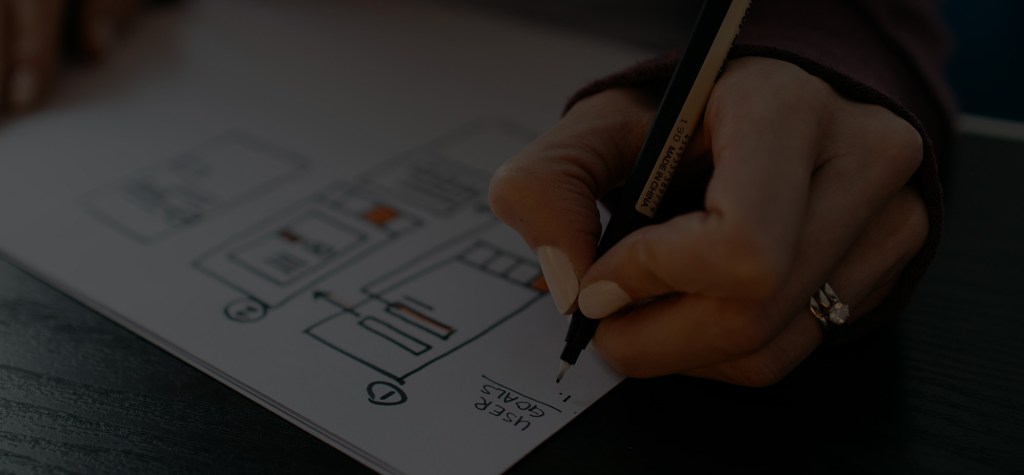
3. Wireframing and UX Design
Once the structure is set, it moves into layout. Here, designers define:
- Placement of navigation (top bar, side menu, footer)
- How menus behave (dropdowns, mega menus, sticky)
- Mobile responsiveness
4. Content Strategy and Design
Content is written, and visual design begins. Navigation labels are finalized to match the tone, audience, and search behaviour.
5. Development
Only after navigation is defined and validated in design does it go into WordPress development. Developers:
- Implement menus using WordPress’s native tools.
- Style them per the design system.
- Add accessibility features and responsiveness.
6. Testing and Refinement
Navigation is tested for:
- Usability
- Accessibility
- Functionality across devices
7. Post-Launch Analysis
Ongoing refinement happens after launch. Heatmaps, analytics, and A/B testing can influence future adjustments.
Why Navigation Should Never Be “Set It and Forget It”
The web evolves. So do audiences. What made sense last year might not be working today. That’s why navigation should be revisited regularly.
Heatmaps, click tracking, and site analytics can reveal where users are getting stuck or where they aren’t clicking at all. Low engagement with a menu item might suggest the label isn’t clear or the content isn’t valuable.
Testing matters, too. Small changes, like reordering links or renaming a label, can have big effects on engagement and conversions.
Broken links, orphaned pages, or confusing menus don’t just annoy users. They erode trust. Keeping navigation up to date is part of keeping a website healthy.
When Navigation Works, Everything Feels Easier
Website navigation might seem invisible when it’s working well. That’s exactly the point. It should guide without distracting, support without overwhelming, and adapt without friction.
In WordPress, the tools exist to make that happen. But strategy, design, and refinement are what turn those tools into experiences.
Trew Knowledge helps enterprise teams turn complex requirements into intuitive experiences. As one of Canada’s top WordPress agencies and the country’s first WordPress VIP Gold Agency Partner, we design scalable navigation systems that support business goals and guide users with clarity.
Whether you’re refining an existing structure or starting from scratch, we’re ready to help. Let’s create better pathways together.